Advanced controls
The default settings work for an initial test. Use this page when you need a fresh proxy exit, more or fewer simultaneous browsers, a separate browser identity, listing sites other than BizBuySell, a fix for a site that is read wrong, or space back on the Railway volume.
Complete Set up Cloak Biz Scraper for your AI before changing these controls. Change one setting at a time and run a small read-only test afterward.
Rotate a profile's proxy exit
Each browser profile keeps a sticky residential proxy session. Rotate only after the current exit is clearly blocked or you deliberately need a new session.
In the dashboard:
- Close any browser currently using the profile.
- Open Settings → Profiles.
- On the intended profile, select New proxy session.
- Launch the profile again. The fresh exit applies on the next launch; it cannot change a browser that is already open.
The profile keeps its cookies, logins, fingerprint, name, country, and region. Only its sticky proxy session changes.
The equivalent AI prompt is:
Use the Cloak Biz Scraper MCP. Close only the blocked browser instance you created. Call
new_proxy_session(name="Default") once, then call create_instance(profile="Default",
geoip=true) and retry the page once. Report the result. Do not rotate repeatedly.
Repeated rotation and retrying can waste proxy traffic or worsen a site block. A new IP also does not bypass a login, CAPTCHA, paywall, or access rule.
Set the number and mix of browsers
Open Settings → Capacity. The two values divide the browser pool:
| Setting | Meaning |
|---|---|
| Most browsers at once | Maximum number the server admits at one time |
| Reserved for non-built-in tasks | Slots kept available for manually or AI-driven interactive browsers |
| Built-in task budget | Calculated as maximum minus reserve; used by sweeps and archives |
For example:
| Maximum | Reserved | Built-in tasks can use | When to choose it |
|---|---|---|---|
| 2 | 1 | 1 | Small host; one sweep while one interactive slot stays free |
| 4 | 1 | 3 | Balanced starting point for several sources |
| 4 | 2 | 2 | Two people or agents may browse while tasks run |
The reserve must be smaller than the maximum so built-in tasks retain at least one slot. Select Save and read any memory warning shown by the app.
Higher concurrency requires enough CloakBrowser sessions, proxy bandwidth, and Railway memory. A setting can be accepted while still being too large for the host. If browsers exit unexpectedly or the app warns about memory, lower the maximum before increasing host size. Start with one page per listing source and raise concurrency only after a stable run.
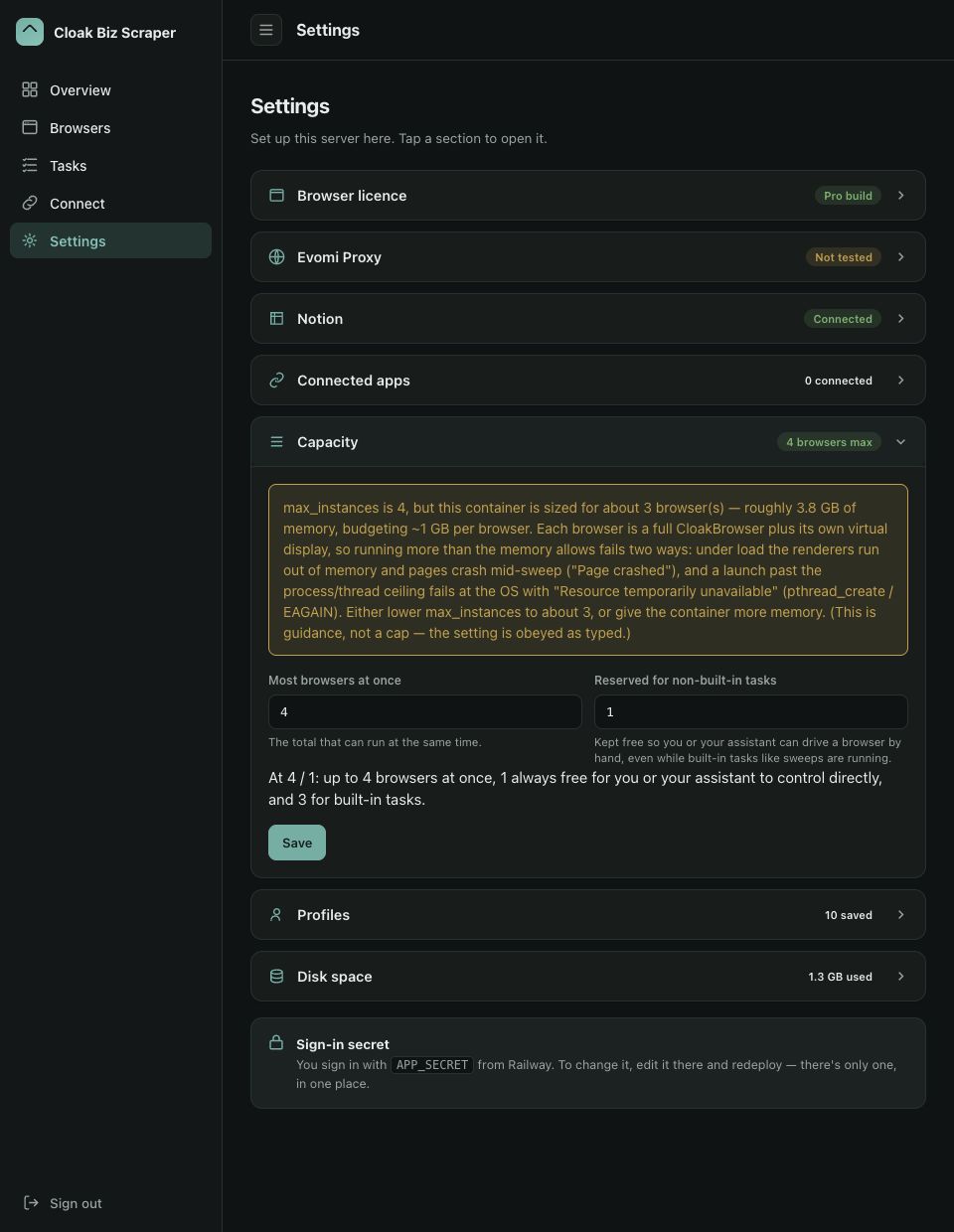
The screenshot shows development-server values and a real host-memory warning. Use the numbers and status reported by your own deployment.
Manage durable profiles
A profile is a saved browser identity. It keeps cookies, logins, local storage, fingerprint, and its own exit geography across browser relaunches.
- Use Default for ordinary continuity. It cannot be renamed or deleted.
- Select + New profile when you deliberately need a clean, separate identity.
- Edit changes a non-default name or future exit geography. Geography changes apply on the next launch.
- New proxy session changes the future exit IP while preserving saved browser data.
- Clear permanently erases cookies, logins, and cache but keeps the profile, location, and proxy session.
- Delete permanently removes a non-default profile and its saved data.
Close a profile's active browser before renaming, clearing, or deleting it. The Settings page shows saved data size for each profile so you can find unusually large identities.
An AI can use list_profiles, create_profile, update_profile, new_proxy_session, and
delete_profile. Make destructive intent explicit. For example, do not ask an agent to
“clean profiles”; name the profile and whether you mean rotate, clear, or delete.
Decision API
The sweep reads BizBuySell with adapters written for its pages. Every other listing site — a broker's own site, WebsiteClosers, Dealonomy, BizQuest, and so on — is read generically: the app groups the page's links by their shape, and the Decision API decides which group is the list of businesses for sale, what each field on a card holds (asking price, cash flow, revenue, location…), and which link or button is the next page. The list and the fields are decided on a sweep's first page and reused for its later pages; the next page is decided on every page. It is a classifier, not a chat model: it answers those questions and nothing else.
With a key saved:
scrape_listingsaccepts any site's listings page, alongside BizBuySell URLs.- Every listing a sweep reads — BizBuySell included — gets one request that asks every
question about it together: is it a business that is currently for sale (not sold,
pending or under contract, and not a menu link, an ad or other page furniture), and, with
a
triage_prompt, REVIEW or REJECT. Only listings your Notion database does not have yet are asked about (plus, when triaging, rows whose Bot Triage is still blank), so a daily sweep of mostly-known listings asks little; withsync=falseevery listing is asked. A sweep has up to five of these requests in flight at once, or as many as the call'sclassifier_parallelasks for (1 to 20). Each sweep keeps to its own number, and the server holds every classifier request together — all sweeps, archive guards and Settings checks — to 20 at once. - On other sites a listing that is not for sale now is left out, and the result's summary counts them ("N left out as not currently for sale / not listings"); there is no separate handling of sold listings. On BizBuySell every card the adapter read is kept.
- The same answers check each page: where fewer than half of a page's listings read as
businesses for sale now (a listing already in Notion counts as one), or a page has no
list on it at all, that source fails with screenshots instead of filing garbage or
reporting "no listings" — on the first page; on a later page the sweep stops there, keeps
the pages before it, and says so in the result's
error. A page with fewer than three listings to go on is never failed this way. A BizBuySell first page that fails is retried from a new exit IP, like a block. - A synced sweep can triage the rows it saves: pass your criteria as
triage_prompt(see Triage prompt).
To set it up:
- Create a key at openrouter.ai/settings/keys and add a few dollars of credit to the account.
- Open Settings → Decision API, paste the key into
OpenRouter API key, leave Model as
jev-latest, and select Save & test. - The section shows Working once OpenRouter answers.
Without a key, everything else works exactly as before: BizBuySell sweeps (which then make
no classifier request at all), Notion sync and archive_page. A URL on another site is refused for that URL, with a message pointing at
this setting, and the rest of the batch still runs.
A key that stops working is caught before a sweep starts, with one quick question (at most
10 seconds). If OpenRouter rejects the key, the account is out of credits, or the service is
not answering, a call whose URLs all need the classifier is refused with that reason. In a batch that also has BizBuySell URLs, only
the other sites fail and the BizBuySell ones still run. A call with a triage_prompt is
refused whole, BizBuySell or not, because it would save rows it then could not decide. If
the classifier stops answering during a sweep, the sweep carries on without it: the
listings not yet asked about are kept, BizBuySell pages keep working, and triage leaves
their rows blank for a later sweep.
Cost: each is a small request, fractions of a cent, billed to your OpenRouter account. A generic site's first page takes three — which list, the fields, the next page — and each later page one (the next page; a fields request only for a field the first page did not have). Every listing not yet in Notion adds one, with or without triage (the triage question rides in the same request), and triage adds two more for each card REVIEW read on its detail page. A two-page sweep of a generic site with 20 new listings a page and triage: 4 page requests + 40 listing requests, plus 2 per REVIEW. A BizBuySell sweep with a key makes only the listing requests; without a key, none.
Triage prompt
scrape_listings(urls, max_pages, sync=true, triage_prompt="…") saves the new listings
and then decides REVIEW or REJECT for each one, in the server, with the Decision
API. It needs sync=true and a working Decision API key; a call without either is refused
before anything starts.
What it does, for every row the sweep inserted and every row it saw whose Bot Triage is still blank:
- While the page is read, it asks one question — your text, behind a fixed lead-in — about the card: title, location, asking price, cash flow, EBITDA, revenue, excerpt and the price/earnings multiple, in the same request that asks whether the listing is for sale now. Once the rows are saved, REJECT is written straight away.
- A REVIEW is checked again on the listing's detail page. If the page is the real
listing, the same question is asked about the card plus the page: REVIEW appends the
page as a Source Content section to the row (exactly as
archive_pagedoes) and then writes REVIEW; REJECT is written with nothing archived. If the page is a login or NDA wall, a removed listing or an error page, REVIEW is written as decided on the card, with nothing archived. If the page will not load at all, the row stays blank and is reported, and a later sweep tries it again.
A row that already has a Bot Triage value — the bot's or yours — is never judged again. A
sweep reads at most 25 detail pages, or as many as the call's max_detail_reads says (1 to
200): card REVIEWs past that stay blank, are counted in the result's triage.deferred, and
are read by the next sweep. Each read holds a pooled browser for about a minute, and reads
run as many at a time as the pool gives tasks (see
Set the number and mix of browsers) — two or three on
most setups — so raising it makes the sweep take longer: 100 reads adds roughly 35–50
minutes. An empty triage_prompt is the same as leaving it out.
Both per-call limits, max_detail_reads and classifier_parallel, are refused before the
sweep starts when out of range — the message gives the range — rather than quietly raised
or lowered to fit. Each sweep's Details (Tasks → History) show the two values it ran with.
The decision goes to the Bot Triage column (Select or Text); a database without one
refuses the call. Triage Reason (e.g. REVIEW · P(review)=0.91 · card + detail page),
Triaged At and Criteria Version are written where the database has those columns,
or where Settings → Notion maps them to columns of your own — Triage Reason to an
existing "Why Review", say. Nothing else on the row is touched.
If the classifier stops answering part-way — or OpenRouter rejects the key or runs out of
credits — the sweep still completes (the rows are saved); no more requests are made, the
rows it had not decided stay blank, the result's triage.error says why, and the next sweep
that sees them decides them.
A question the classifier refuses for one listing only (an answer it can't give for that
card) fails that row alone, listed in triage.failures; the others are still decided.
Two sweeps that run at the same time never triage the same row twice: a row the other sweep
is already on is left to it and counted in triage.in_flight. And a page archived into a row
is written whole or not at all — if Notion refuses part of it, the part already written is
deleted again, so the next sweep (or archive_page) can file it cleanly.
Writing the text. The classifier judges; it cannot follow a procedure or write an explanation. So:
- State the reject conditions plainly, one per line or bullet: "Reject restaurants, retail, franchises." "Reject if the asking price is below $1M or above $7.5M." Say what happens when a fact is missing ("Continue if the price is not disclosed") — the question already leans towards REVIEW when the evidence is missing or ambiguous.
- Leave out tool and procedure steps — "open the detail page", "call archive_page", "write a reason". The server does those; in the text they are only noise.
- You do not need to compute the multiple. When the asking price and the cash flow (or
EBITDA) are each one exact amount, the card is given a
price_to_earnings_multiplesuch as4.25x, so "Reject if asking price / SDE > 6.0" works as written. - Changing the text changes the Criteria Version, the first 8 characters of its sha256, written on every row it decides. Rows decided under earlier text keep theirs; clear a row's Bot Triage to have the next sweep decide it again under the current text.
Keeping the criteria on a Notion page works well: the scheduled agent reads the page and
passes its text. scripts/triage_prompt_from_notion.py <page id or URL> prints a page's
plain text, the same way, to check what the classifier will be given; and
scripts/eval_triage.py runs a prompt over your Listings database's existing rows and
reports how often it agrees with the Bot Triage values already there, without writing
anything.
When a site is read wrong
A generic site is decided fresh by every sweep — its list and fields on the first page
(reused for that sweep's later pages), its next page on every page — and nothing is
remembered between sweeps, so a site that changes its layout is read by its new layout.
When one decision keeps coming out wrong for one site — the wrong list, a field left
empty, paging that stops early or never stops, sold listings kept — that part is pinned in
the server's code (SITE_OVERRIDES in app/sources/overrides.py), not in Settings.
To see what was decided, open Tasks → History and select Details on a sweep of the
site. Each generically read URL in decisions has:
pages— what was decided on each page and by whom (jev, oroverridefor a site pinned in code): the chosenlisting_linkspattern with its confidence, each field's role and whether it was confident enough to use, thenext_pagerule (and, for a button,clicked_by: itsmark, itsselector, or are-probewhen the site had re-drawn it, plusclicked_again_bywhen the first click changed nothing; for a link that pointed off the site,refusedwith where it went — it is not followed), and how many cards adrop_statusoverride dropped.legibility— for each page, the code checks (cards without a title or link) andeligibility: how many listings were asked about and how many were already in Notion, how many were judged not for sale now (the first ten by title and probability) and how many of those were left out, and why the classifier stopped if it did.warning— when the sweep stopped at a later page it could not use, which page and why (the pages before it were kept).not_fully_crawled— the site's list went on pastmax_pages.suggested_override— what was decided on page 1, in the shape of a code override: the starting point for pinning the site.
Clean up the Railway volume
Open Settings → Disk space to inspect each category before deleting anything.
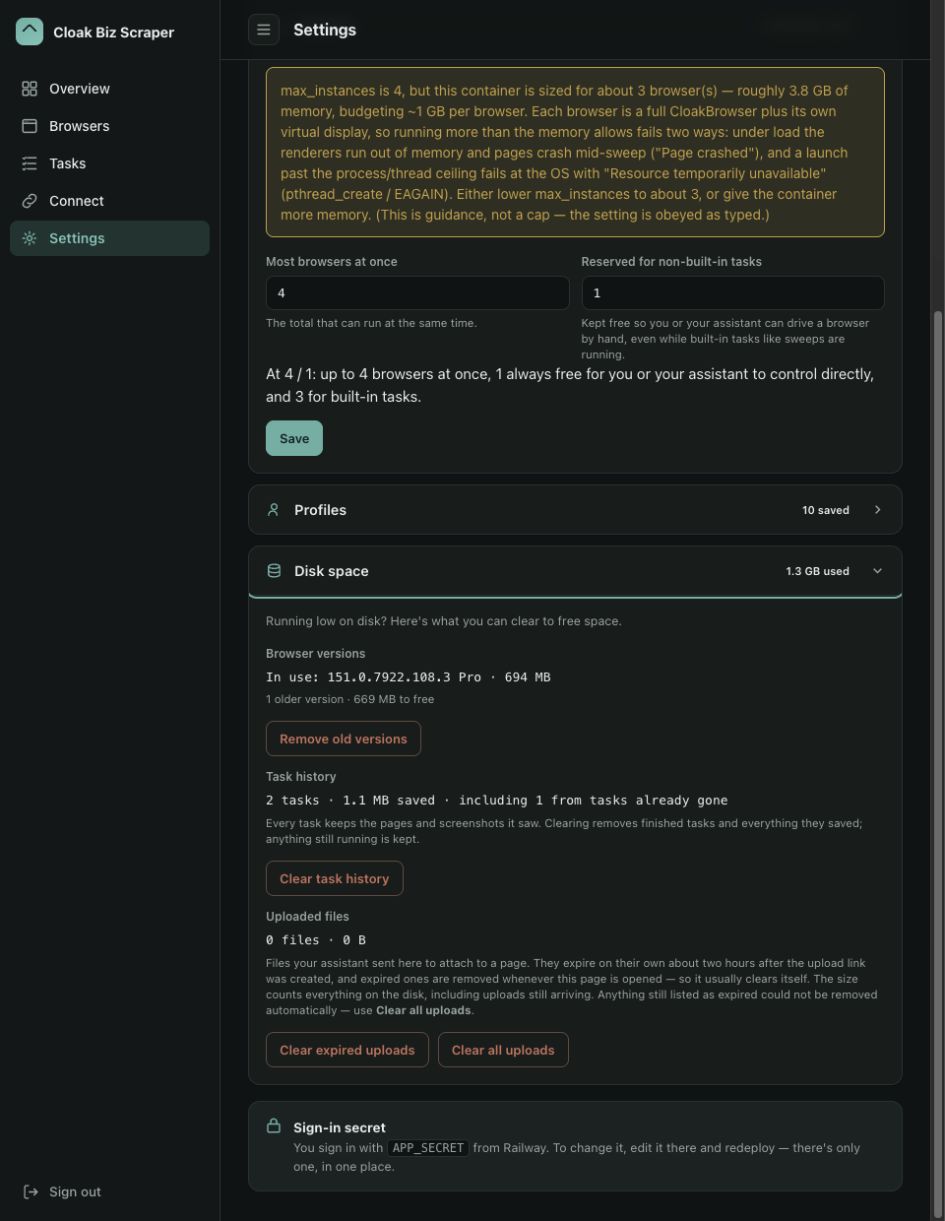
Browser versions
Select Remove old versions to delete older browser builds while keeping the one the server currently uses. If the app has not recorded the active build, open Browser licence, select Save & verify, then return to Disk space.
Task history
Every completed task can keep the pages and screenshots it saw. Clear task history permanently removes finished tasks and their evidence; a task still running is kept. Review failed runs before clearing because their screenshots and HTML are often the best diagnostic record.
Uploaded files
Uploads normally expire about two hours after their upload link was created, and the app tries to remove expired files when the Settings page opens.
- Clear expired uploads keeps files whose links are still live.
- Clear all uploads removes every uploaded file, including one an agent may still need.
These cleanup actions cannot be undone. Do not clear all uploads during an active task.
Downloaded files
Files your assistant downloaded with download are kept for about two hours so it — or
you, from the link it gave you — can fetch them. Expired ones are removed when the Settings
page opens.
- Clear expired downloads keeps files whose links still work.
- Clear all downloads removes every downloaded file; links already handed out stop working.
A conservative monthly maintenance routine
- Check Tasks → History and save any evidence you still need.
- Open Settings → Disk space and compare the categories.
- Remove old browser versions.
- Clear task history only after the relevant failures have been reviewed.
- Clear expired uploads and downloads; use Clear all uploads or Clear all downloads only when no task still needs those files.
- Review profile sizes and clear a profile only when you are willing to lose its cookies and logins.
- Run the read-only connection test from the scraper setup guide.