Monitor a browser and take control
Cloak Biz Scraper lets you see what an AI-driven browser is doing, inspect completed-task evidence, and take control when a site needs a human. You do not need to guess whether the agent is waiting, blocked, or on the wrong page.
Complete Set up Cloak Biz Scraper for your AI first. Then open your
Railway deployment in a normal browser and sign in with APP_SECRET.
See what is running
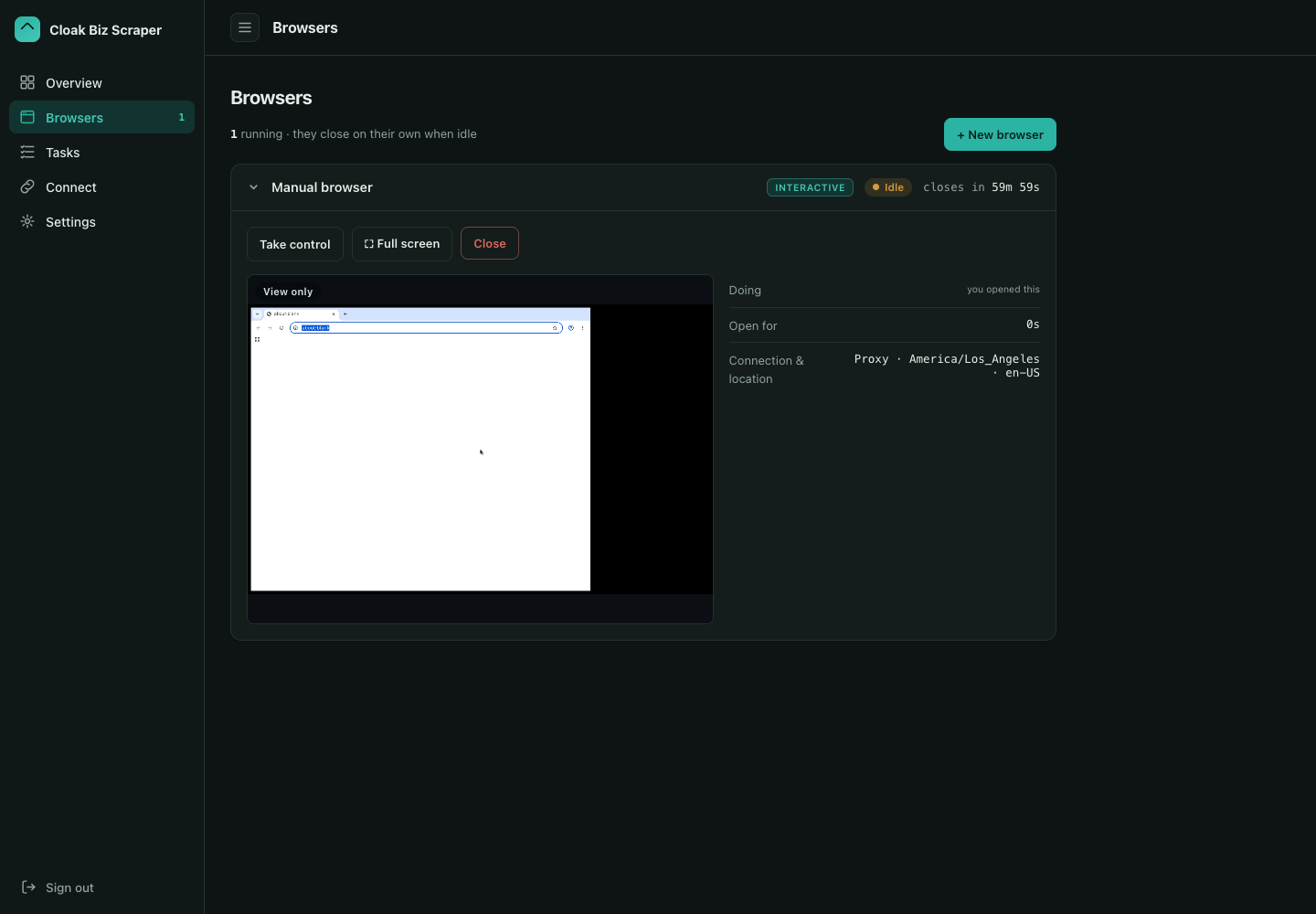
The Overview page shows active browsers as view-only live previews. Use it to check the current page, profile, proxy location, and remaining lifetime without accidentally clicking inside the remote browser.
Open Browsers for the full live view. Each browser is identified by its instance_id and
profile. If several agents are working, ask the agent to report the ID it created so you take
over the correct one.
You can also ask the AI for a text status report:
Use the Cloak Biz Scraper MCP. Call list_instances and report each open browser's
instance_id, profile, age, and idle time. Do not create or close anything.
Call get_instance with one ID when you need its latest connection links. This refreshes
short-lived CDP and live-view links without launching a duplicate browser.
To inspect the current page in a known instance, ask for
agent_browser(instance_id=<ID>, command="get url"). The instance-list response itself does
not include the page URL.
Watch a built-in task
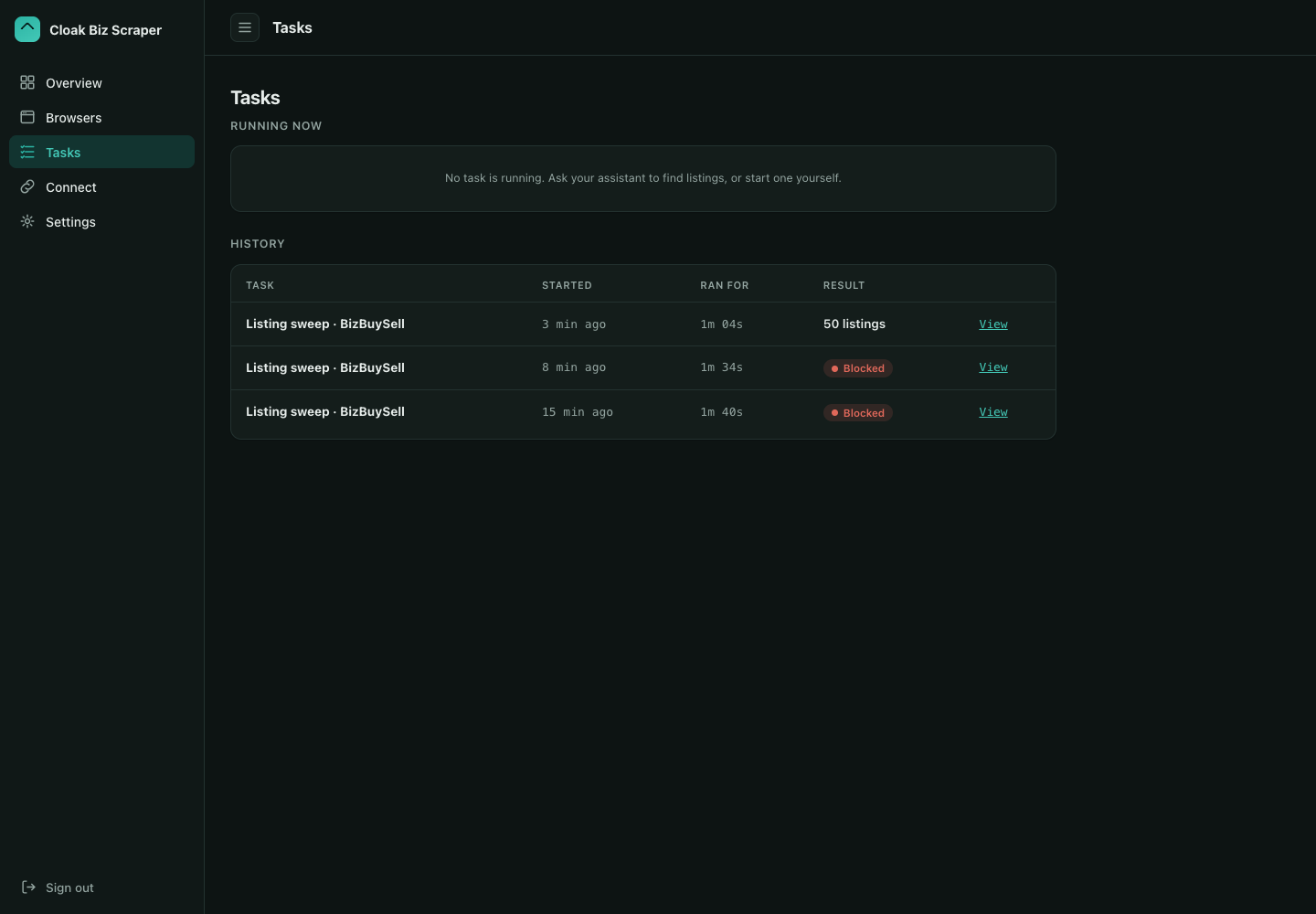
Open Tasks while a listing sweep or archive is running:
- Running now shows tasks that have not finished.
- History keeps the result of completed and failed tasks.
- View opens the result and saved evidence, including pages and screenshots captured by the task.
The MCP call that starts a listing sweep returns a job_id immediately. The agent should
poll get_scrape_listing_results(job_id=...); the web dashboard and the MCP status describe
the same server-side job. A returned job ID alone does not mean the scrape finished.
Use saved evidence when a task says a source was blocked, timed out, or returned no listings. It is more useful than repeatedly retrying an unknown failure.
Watch it in the chat
In Claude and ChatGPT, a live view appears in the conversation when your assistant opens a browser. It shows the page as it changes (about once a second), what the assistant has done so far, and any files it downloaded, with a Download button for each. The view is watch-only: nothing you do in it reaches the browser. If it has scrolled away, ask the assistant to "show me the browser".
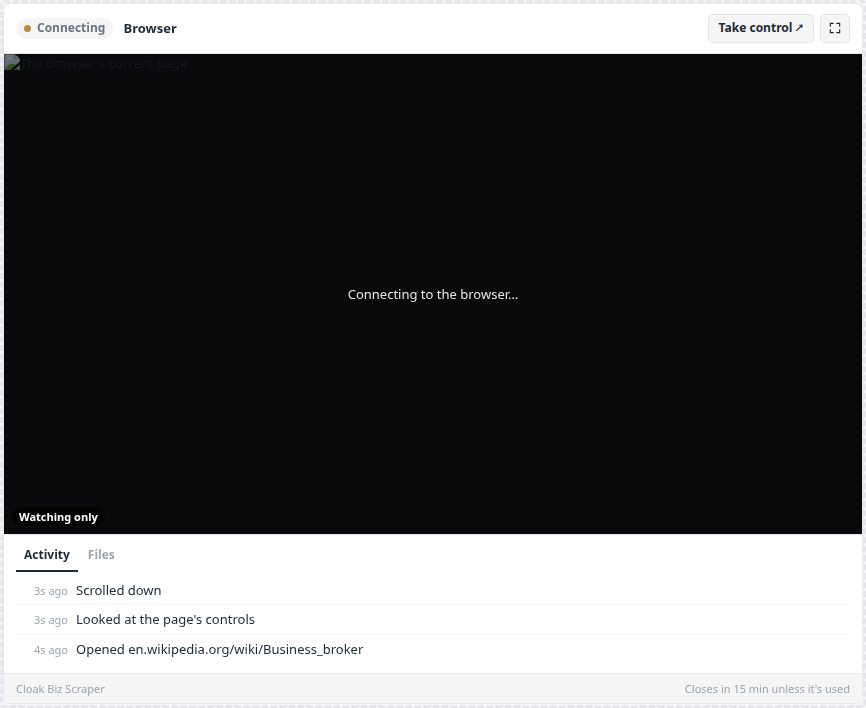
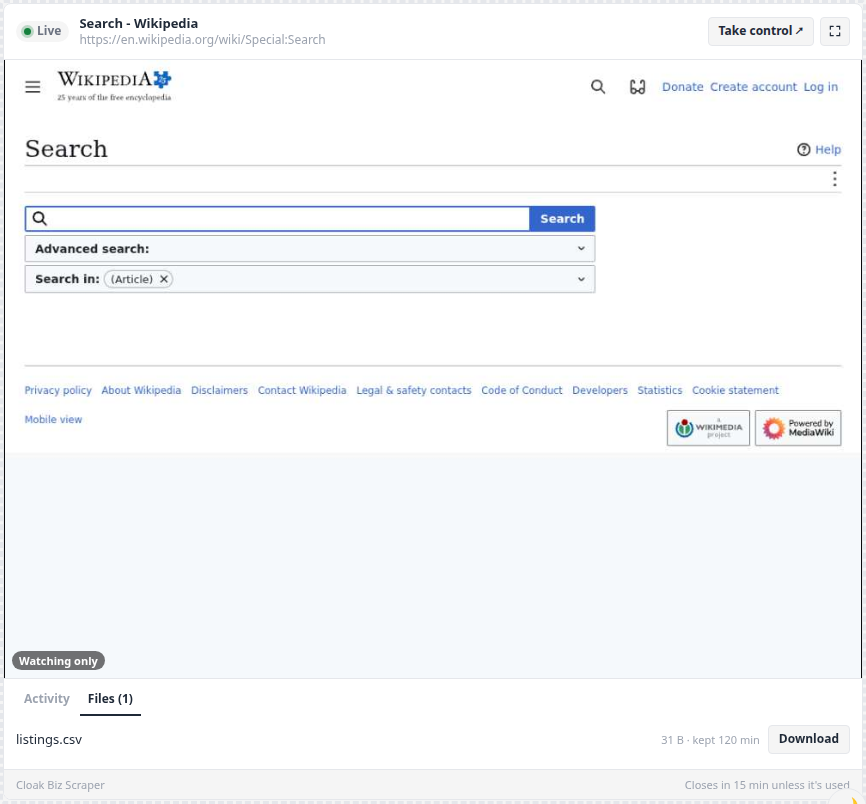
The view stops fetching pictures shortly after you stop looking at it, and watching does not keep an idle browser open.
Take control for a human-only step
Use takeover for a legitimate login, CAPTCHA, one-time code, consent dialog, or other step that should not be placed in an AI prompt:
- Tell the agent to stop on the current page and keep its browser open.
- Select Take control ↗ in the chat's live view — it opens this browser on your
dashboard (sign in first if asked). Or open Browsers in Cloak Biz Scraper and match
the
instance_id. - Select Take control. The live view becomes interactive.
- Use Keyboard if you need the on-screen keyboard controls, then complete the step.
- Select Release control when finished.
- Tell the agent what changed and ask it to take a fresh
snapshot -ibefore continuing.
Copy and paste
While you have control, the clipboard works in both directions:
- Into the browser: copy text on your computer, click into the live view, and press Ctrl+V (⌘V on a Mac).
- Out of the browser: select text in the live view and press Ctrl+C (⌘C on a Mac). It
lands on your computer's clipboard. If your browser refuses that (Safari, or a dashboard
opened over plain
http://on a LAN address), a Copy from browser button appears above the view. Click it.
On a Mac, ⌘ acts as Ctrl inside the remote browser, so ⌘A, ⌘F and ⌘L work too. Only text is copied, up to 1 MB per paste. A view-only browser has no clipboard.
Example handoff prompt:
Use the Cloak Biz Scraper MCP and keep the current browser instance open. Navigate to
[URL]. If you reach a login, CAPTCHA, one-time code, payment, or consent step, stop there,
report the instance_id and current URL, and wait for me to take control in the scraper's
Browsers tab. After I say "continue", take a fresh snapshot -i before doing anything else.
Do not paste passwords or one-time codes into the chat. Enter them directly in the live browser. CloakBrowser reduces avoidable bot challenges; it does not solve CAPTCHAs or remove the need for human authorization.
Know when a browser closes
An AI-created browser closes after 15 minutes without activity or after 60 minutes total. Use the same durable profile on the next launch when you want its cookies and login state.
If a live-view or CDP link expires while the instance is still open, call get_instance or
list_instances for a fresh link. Do not create a second browser solely to refresh a link.
When the task is finished, have the agent call close_instance for the browser it created:
If the agent seems stuck
- Check Browsers for the actual visible page.
- Check Tasks → Running now and History for a built-in task and its evidence.
- Ask the agent to call
get_instancefor the known ID and thenagent_browserwithget urlandget title. - If the page needs a person, take control. If it shows a clear site block, close the instance and follow the bounded proxy-rotation procedure in Advanced controls.
- If the browser has closed, read the returned error and create one replacement. Avoid unbounded retry loops.
Only access public pages or accounts you are authorized to use. Respect site terms, access controls, rate limits, and paywalls.