OpenClaw quick setup
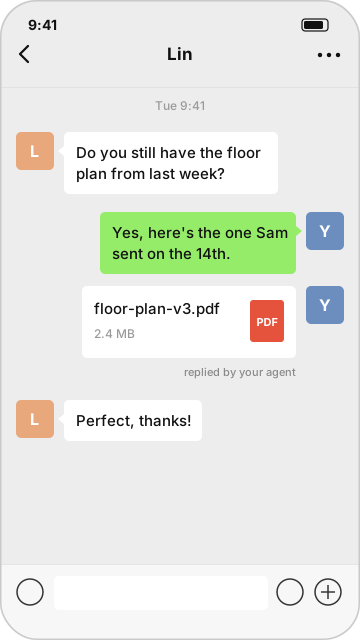
The agent-wechat plugin connects OpenClaw to a running wx daemon. Your agent receives WeChat messages and replies from your account.
You need a daemon that is running and logged in. If you haven’t set one up, see Connect your account.
-
Create a token for OpenClaw.
Terminal window wx accounts list # note the account "id"wx tokens create openclaw --accounts ACCOUNT_ID \--scopes read --scopes media --scopes send --scopes login --scopes read-stateCopy the
tokenvalue from the output. It isn’t shown again. -
Install the plugin.
Terminal window openclaw plugins install @agent-wechat/agent-wechat -
Add the channel to
~/.openclaw/openclaw.json. This example lets one friend message the agent:{"channels": {"agent-wechat": {"enabled": true,"dmPolicy": "allowlist","allowFrom": ["wxid_friend"],"native": {"mode": "external","accountId": "ACCOUNT_ID","endpoint": "http://127.0.0.1:6174","token": { "source": "env", "provider": "default", "id": "AGENT_WECHAT_TOKEN" },"consumerStateDir": "/home/you/.openclaw/agent-wechat"}}}}Find a friend’s ID with
wx contacts find NAME, and a group’s (ending in@chatroom) withwx chats find NAME. Contact IDs often start withwxid_, but some do not. Use the returned ID rather than a nickname or changeable WeChat alias. Your own ID is thesenderIdon any message you sent, for example inwx messages list filehelper --limit 1. -
Give the Gateway the token by setting
AGENT_WECHAT_TOKENin its environment, then restart the Gateway. -
Test it. Have your friend send you a message. The agent should reply in the same chat.
Next: decide who the bot answers, including groups, which tools it gets, and whether to enable calling.